

Troubleshooting SSMS Maintenance Plans
 1
1
- Details
Learn about built-in logging and reporting options that will help make troubleshooting problems with SQL Server 2005 and 2008 Maintenance Plans much easier to deal with.
This Video Covers
Backups, Maintenance Plans, and SQL Server Management Studio.
Details
Video Length: 08:58
Skill Level: 200 - Intermediate
Series: SQL Server Backups
Author/Presenter: Michael K. Campbell
Applies to SQL Server: 2005, and 2008
Tags: Tips and Tricks, Disaster Recovery, Maintenance, SSMS, and Troubleshooting


- Downloads


+ Related Videos
SQL Server Backups Demystified
Learn why SQL Server Backups can be hard to understand and master. A must-see video for anyone who isn't familiar with SQL Server Backup functionality.
Covers: Backups, Recovery, Log Files, Transactions, and the SQL Server Storage Engine.
Skill Level: 000 - Overview
Video Length: 11:09
Release Date: 2008-01-03
Understanding Backup Options
Learn about backup types, execution options, storage locations, and other options in order to best address your backup and recovery needs.
Covers: Backups, Recovery, Log Files, Storage Engine, and the SQL Server File System.
Skill Level: 000 - Overview
Video Length: 12:46
Release Date: 2008-01-03
Maintenance Plans with Management Studio
Learn how to create SQL Server 2005 and 2008 Maintenance plans using SQL Server Management Studio.
Covers: Maintenance Plans, Backups, and SQL Server Management Studio.
Skill Level: 100 - Beginner
Video Length: 10:45
Release Date: 2008-08-26
SQL Server Backup Best Practices

Learn about SQL Server Backup best practices and the role of disaster recovery plans.
Covers: Best Practices, Disaster Recovery, Backups, and Recovery.
Skill Level: 000 - Overview
Video Length: 12:14
Release Date: 2008-07-19
+ Related Resources
Microsoft SQL Server 2005 Administrator's Pocket Consultant

Chapter 15 includes some insights into creating Maintenance plans, and also provides some coverage on how to interpret log file results work with the Log File Viewer.

Microsoft Help and Support

Here are a number of KB articles dealing with specific problems that you might encounter while troubleshooting SQL Server 2005
and 2008 maintenance plans
923355 - Backup Failed for 'Computer Name\InstanceName' and 'sysft_FullTextCatalog' problems
938085 - Cleanup tasks not deleting reports
Microsoft Help and Support
This KB article (953118 covers what kinds of changes you can make within your SQL Server Agent Jobs and what happens to them when you modify your Maintenance Plan. (i.e. your saved changes will be lost)
+ Transcript
NOTE: Accompanying timeline provides approximate correspondance only.
00:00
-
-
-
-
00:15
-
-
-
-
00:30
-
-
-
-
00:45
-
-
-
-
01:00
-
-
-
-
01:15
-
-
-
-
01:30
-
-
-
-
01:45
-
-
-
-
02:00
-
-
-
-
02:15
-
-
-
-
02:30
-
-
-
-
02:45
-
-
-
-
03:00
-
-
-
-
03:15
-
-
-
-
03:30
-
-
-
-
03:45
-
-
-
-
04:00
-
-
-
-
04:15
-
-
-
-
04:30
-
-
-
-
04:45
-
-
-
-
05:00
-
-
-
-
05:15
-
-
-
-
05:30
-
-
-
-
05:45
-
-
-
-
06:00
-
-
-
-
06:15
-
-
-
-
06:30
-
-
-
-
06:45
-
-
-
-
07:00
-
-
-
-
07:15
-
-
-
-
07:30
-
-
-
-
07:45
-
-
-
-
08:00
-
-
-
-
08:15
-
-
-
-
08:30
-
-
-
-
08:45
-
-
-
-
08:58
Hello and welcome to another SQL Server Video. My name is Michael Campbell, and in this video we’ll look at ways to troubleshoot maintenance plans created with SQL Server Management Studio – specifically in terms of maintenance plans designed for backups.
In a previous video, Creating Maintenance Plans with SQL Server Management Studio, we looked at how to use maintenance plans to create reliable backup routines that serve as a core component of disaster recovery plans.
And during that video, we saw how the plan substeps and details that we outlined were turned into individual schedulable tasks, or jobs, that SQL Server could hand off to the SQL Server Agent for regular execution.
Therefore, in this video, we’ll take a look at things that you can do to troubleshoot cases where something goes wrong with these regularly scheduled jobs.
And, in this video we’ll debug and troubleshoot using SQL Server Management Studio 2008, though everything we’ll look at in this video can just as easily be done in SQL Server Management Studio 2005.
To get started, we’ll go ahead and open up the SQL Server Agent node – and look at the jobs that we created in our previous screencast on authoring maintenance plans.
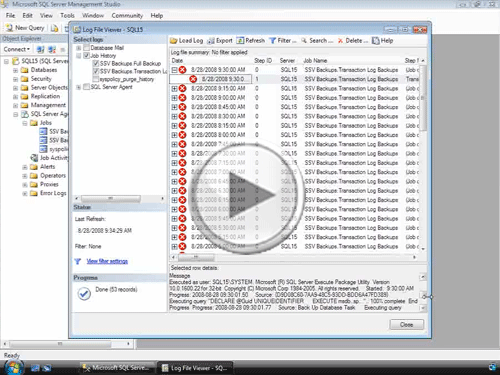
Sadly, however, this listing of jobs in the treeview doesn’t tell us if these jobs are running into any problems or not – and to see that kind of information, we need to open up the Job Activity Monitor – which instantly shows us that one of our maintenance plan jobs recently ran into a problem, because the icon is a red x.
Of course, the red-x only indicates a failure the last time this job was run – so don’t assume that just because you don’t see any red-xes that everything is fine – as you may have a job that’s occasionally running into problems.
Therefore, to get more complete, and chronological, information about execution outcomes, we can right click on an individual job and select the View History option. And what’s great about this option, is that it’s available from the main tree-view – meaning that we don’t have to launch the Job Activity Monitor just to assess how our jobs are executing.
And from the left-pane of the logging viewer we can also include any other jobs we want to look at – making this tool a great for quickly sizing up how your backups and other maintenance tasks (as well as other SQL Agent Jobs) are behaving over time.
Then, if we expand one of the instances of this job that encountered a failure, we see that there’s a sub-entry for the actual execution of the SQL Server Integration Services package that was created when we defined our maintenance plan-sub step that corresponds to this job.
And we’ll want to pay attention to that sub-entry, because if we look at the details of the parent node, we’ll just get lame information from the SQL Server Agent telling us that ‘the job failed’ – which obviously isn’t too helpful.
On the other hand, if we look at the details for the child node, we see that there’s a lot more information. Sometimes, this information will actually make sense. Sadly, many other times it’s just a collection of what appears to be incomplete or abridged logging information. In cases like this, I typically TRY to read through most of these incomplete details – and see if I can get a feeling for anything that might make sense. Sometimes that pays off. Sometimes that also leads me on a wild goose-chase – as I think I might be on to something, when the problem is actually something else altogether.
As such, a great way to try and troubleshoot problems that you encounter here, or in any logs for that matter, is to look for something that looks like it would be specific to this individual failure or issue. Error codes or numbers are always the best thing to look for, but if you can’t find one of those, look for something else that doesn’t look like it’s just part of the ‘normal reporting’ process.
So, in this case, something like the ‘DTSER_FAILURE’ text might be the best thing to look for.
And once you find something that seems to be fairly specific, copy and paste that exact information into Google.
Taking this approach won’t always lead you to a solution, but as you start tracking down different options, you’ll frequently start to get a feel for what some of the probably culprits could be.
Of course, the big problem here is that these details just don’t seem to be complete – and if we could just get a feel for the order of operations – in order to see what completes and what doesn’t, we might be able to get a much better feeling for what’s going wrong.
Happily, in cases where we want to troubleshoot problems like this, we can enable additional logging options that can help give us greater insight into what’s going on.
To do this, we just need to play around with some of the options for our maintenance plan – where we can turn on some logging and reporting capabilities.
And from this dialog, we can give ourselves better insight into what’s going on by enabling text file reports – which I’ll just tell the server to drop into my backups directory in order to keep things a bit more tidy.
Likewise, the option to turn on extended logging information can be helpful in some scenarios – but in others, it won’t add more logging information than what already exists. That said, it’s still an option you’ll want to check when troubleshooting.
Note too that these settings apply to all of the subplans within your maintenance plan. And it’s also worth calling out that these additional logging options are all turned off by default.
Therefore, if you’re going to turn them on, I’d recommend adding a new sub-plan to your maintenance plan – just to make sure that you’re deleting any of these reports that are older than say… 3 or 4 weeks old – as they’ll just start to clutter up you logging directories without this cleanup.
With these changes in place, we can wait for our jobs to re-run, and when they do, we’ll have increased instrumentation and reporting options available to help troubleshoot what’s going on.
Likewise, if running your job won’t introduce any negative side-effects, you can also re-run it – which I’ll do now to simulate a scheduled run.
And once it fails, if we return to the history for this job, it would be nice to see some extended logging information – but in this specific case we’re not given any additional information – given the nature of this error.
But, we can still take advantage of those newly added text file reports generated during job execution by navigating out to the directory where they were written, and opening them up for additional information.
When looking at this report, it would be great if something in big, bold, text leapt out from this report and explained where the error or problem was.
Happily, sometimes when you look through these reports, that’s pretty much what will happen. In fact, in my own experience, when it comes to troubleshooting backups that are executed as part of a maintenance plan, I’ve found SQL Server to do an insanely good job overall.
Meaning that I’ve rarely run into problems or errors – and when I have, it’s USUALLY been because I’m running short on disk, or because transaction log backups and full backups are trying to execute at the same time, or because a database that is executing transaction log backups has accidentally been set to simple recovery.
And in cases like those, looking at this report makes troubleshooting very easy.
In our case though, something else is up. So, in cases like this – where it looks like everything should be working, you can use the details from this report to help give you a better insight into what’s up as well. And to do that, you can actually copy and paste the commands being executed into a new query window and execute them – as long as doing so won’t introduce any instability or side-effects into your system.
And I’ve found, in many cases, that this is a great way to see what the job-scheduler ‘sees’ when it runs commands – and, as such, this represents a great way to troubleshoot.
Of course, before you can run this code, you’ll need to account for some funky escaping going on when this information is logged – by replacing double-ticks with single ticks, but once you do so, you’re then free to run the code and see if that sheds any additional light on the problem.
In this case, executing the SQL won’t shed any additional light on the problem – because the SQL works perfectly. Which means that the problem has something to do with the way the package is handling clean up or finalization tasks.
And, interestingly enough, by Googling on the DTSER_FAILURE text that we looked at earlier, and evaluating some of the responses I found with the fact that this SQL statement is working perfectly, I was able to solve this problem after finding a report where someone else had a similar problem and solved it by merely recreating the subplan giving them grief. Which is exactly what I did.
But, hopefully now that you’ve watched this video you’ll have a better handle on how to troubleshoot your own jobs and tasks. And, as you can see, here’s a recap of the things you’ll want to do when trying to troubleshoot your own maintenance plans.
Otherwise, we’re done with this video – thanks for joining, and we hope to see you in subsequent videos.
- Comments
Do Not Redistribute
Please do not redistribute this content.
+ I Already Agreed - Stop Bugging Me
Non-Registered users must agree not to distribute each new time that they visit the site (prior to the first download per each visit or session on the site).
Registered users don't have to agree to terms each time they visit the site.
Registration costs nothing, is painless, and is evil-free™. And SQLServerVideos.com will never divulge your personal information to third parties. Ever.
Registered Users
Login Here
+ Terms of Service
By using this site and its resources, you agree to the following terms of use:
Redistribution is prohibited.
Redistribution of videos via any of the following means is prohibited:
• WebServer/HTTP, FTP
• YouTube and similar sites,
• BitTorrent and other P2P technologies,
• CD/DVD, Portable Hard-Drive, etc.
All Rights Reserved.
• SQLServerVideos' Parent Company, OverAchiever Productions, reserves all intellectual rights associated with this site and its content.
• OverAchiever Production reserves the right to prosecute or litigate copyright violations.
• As the copyright owner, OverAchiever Productions will also request information (from Google, YouTube, etc.) about anyone that posts copyrighted SSV
content to a video distribution site.

HAHAHHA nice maybe one day if/when I tech edit a book I can pass along those words of wisdom from Brent to Tom from Tom to Colin from Colin to ???I did get a copy (thanks!!!) which is anoethr great reason why it is one of the two books I'm going to tackle next Thanks and good luck with the MCM training!
Add A Comment